First run
Quick start
RetainerMeter is built around one repeated workflow: set up a client retainer, enter hours during the week, watch burn status during the month, then preview and export the invoice when billing time arrives.
The usual setup path
- Open the setup assistant on first launch.
- Enter your consultant or company name.
- Choose currency, date format, tax label, and tax percentage.
- Add your first client and primary project.
- Choose the billing model that matches the agreement.
- Save setup, then begin entering weekly work.
The monthly working cycle
- Use the Work tab for weekly hour entry.
- Use burn cards to monitor retainer usage during the month.
- Open Billing for the invoice month.
- Preview the invoice before sending anything.
- Export PDF when the invoice is ready.
- Mark sent and record payment after the invoice is issued.
Local-first expectation: normal hour tracking, burn cards, invoice preview, and invoice generation happen on your computer. Online services are used for downloads, update checks, registration, maintenance checkout, and support messages when you choose to use them.
Settings
Profile and app settings
Settings are split into Profile, App, Invoicing, and Registration. These settings control how the app looks, how dates and weeks behave, how invoices are formatted, and how licensing and maintenance are handled.
Profile
The Profile tab holds the visible identity for your RetainerMeter workspace.
- Consultant name appears in the toolbar and on invoice output.
- Consultant logo path lets you choose a local image file for branding. The app validates the image and prepares versions used in the app and invoices.
App
The App tab controls practical working preferences.
- CSV export folder controls where CSV exports are written. If it is blank, the default export location is used.
- Date format can follow the local system format, or be forced to US, European, or ISO display.
- Week starts on controls how the weekly grid is laid out.
- Autosave weekly grid changes saves work changes without requiring manual Save each time.
- Check for updates on startup controls automatic update checks.
Invoicing
The Invoicing tab controls invoice output. Set these before sending real invoices, because exported invoices keep their own snapshot once locked.
- Currency controls invoice currency display.
- Invoice terms appears on invoices, for example
Due on receipt. - Tax label can be
VAT,Tax,GST, or another label appropriate for your market. - Tax % applies the configured percentage to invoice subtotals.
- Consultant address appears in the invoice sender area.
- Payment instructions can hold bank transfer details, payment links, remittance notes, or tax notes.
- Invoice number prefix and Next invoice # control future invoice numbering.
Invoice numbers are important: new invoices receive numbers and keep them permanently. If an export was made in error and you need to adjust future numbering, change Next invoice # before exporting the next invoice.
Clients
Clients and projects
Clients define who you work for, what projects can appear in the weekly grid, how invoices should be addressed, and how the billing math should work.
Core client fields
- Client name is the name shown in the grid, burn cards, and Billing.
- Billing contact and billing address appear on invoices.
- PO / reference appears on invoices when the client requires a purchase order or reference.
- Invoice To, Invoice Cc, and Invoice Bcc store email routing information for your own reference.
- Projects define the project names available for that client in the weekly grid.
- Active client controls whether the client appears in Work and Billing going forward. Use this to retire a client without deleting history.
Projects
Projects are useful when one retainer covers several streams of work. For example, a client might have Operating Rhythm, Portfolio Operations, and Board Reporting. The weekly grid uses projects to keep notes and invoice breakdowns readable.
When client tabs are enabled, the Work tab can show one client at a time. This is useful when there are many clients or projects and you want a less crowded grid.
Deleting versus deactivating
Deleting a client is permanent. For normal client offboarding, use Active client instead. Deactivating keeps historical usage and invoices intact while removing the client from active work entry.
Billing
Billing models
RetainerMeter supports three billing models. The correct choice depends on your agreement with the client, not on how busy the month feels.
| Model | Use it when | Invoice behavior |
|---|---|---|
| Hourly | You charge only for actual hours worked. | Hours used multiplied by the hourly rate. |
| Flat monthly retainer | The client pays a fixed monthly fee regardless of whether usage is below, at, or above the allowance. | The invoice charges the monthly retainer fee. Used hours and included hours are shown for context. |
| Retainer plus additional hours | The monthly fee includes an allowance, and hours above the allowance are charged separately. | The invoice charges the retainer fee plus additional hours multiplied by the additional-hours rate. |
Hourly
Hourly billing is the simplest model. RetainerMeter totals the hours for the invoice month and multiplies them by the client hourly rate.
Flat monthly retainer
A flat monthly retainer charges the agreed monthly fee regardless of usage. RetainerMeter still shows hours used, included hours, burn percentage, remaining hours, and additional-hours indicators so you can manage the client relationship.
If the client uses more than the included hours, the invoice still charges the flat retainer fee. The extra hours are informational unless you change the client to Retainer plus additional hours.
Retainer plus additional hours
Retainer plus additional hours is for agreements where the client has a monthly fee and an included allowance, but time above that allowance is billable.
Subtotal = monthly retainer fee + (additional hours x additional-hours rate)
Tax and total
After the subtotal is calculated, the configured tax rate is applied. For example, if the subtotal is USD 6,400 and the tax rate is 23%, tax is USD 1,472 and the total is USD 7,872.
Rollover
Rollover hours
Rollover hours are a manual adjustment to the included hours for a client. They do not automatically carry unused time from one month to the next.
The app calculates included hours like this:
For example, if a client has 34 included retainer hours and you enter 4 rollover hours, RetainerMeter treats the month as having 38 included hours. If the client uses 42.5 hours, the burn view and invoice context can say 42.5h used of 38.0h included.
When rollover hours are useful
- You agreed to let a client use a few unused hours from a previous month.
- You gave a one-off goodwill credit.
- You want to absorb a small overage while still keeping usage visible.
- You need to correct a prior-month billing arrangement without changing the base retainer.
What rollover hours are not
- They are not an automatic rollover ledger.
- They are not automatically reset every month by the app.
- They are not a replacement for agreeing a clear rollover policy with the client.
Recommended practice: use rollover only when there is a clear commercial reason. If the agreement does not allow rollover, leave it at zero and use the normal included retainer hours.
Work tab
Weekly grid
The weekly grid is where daily work is entered. Each row represents a client and project. Each day cell holds the time recorded for that day.
Entering time
Hour cells accept practical time formats. You can enter decimals or time-like values depending on how you think about the work.
1.5for one and a half hours.1h 30mfor one hour and thirty minutes.90mfor ninety minutes.
Rows, notes, and projects
Use one row per client/project stream for the week. Keep notes short but meaningful enough to support billing review later. Notes and projects can appear in invoice breakdowns, especially when reviewing additional-hours work.
Navigation and saving
- Enter moves to the next editable cell.
- Tab and Shift+Tab move forward and backward through editable cells.
- Arrow keys move through hour cells.
- Save saves the current week when autosave is off.
- Autosave can save weekly grid changes automatically.
Toolbar actions
- Add adds a usage row for an active client/project.
- Copy week copies last week's client/project row structure into the current week with hours and notes cleared.
- Clear week clears the current week.
- Export CSV writes a CSV export for the current month/work data.
- Undo and Redo help recover recent grid edits.
- Compact, Wrap notes, and Tabs adjust how much of the grid is visible.
Weeks that cross months
The Work tab is weekly, but retainers and invoices are monthly. Hours are counted by their actual calendar date. If a week crosses from May into June, May dates count toward May and June dates count toward June.
The burn cards use the billing month associated with the selected week, and the Help dialog describes that if a week crosses two months, RetainerMeter uses the month containing most of that week for the burn-card context.
Burn
Burn cards
Burn cards show how each active client is tracking for the billing month. They update as you enter work, so you can spot risk before the invoice is prepared.
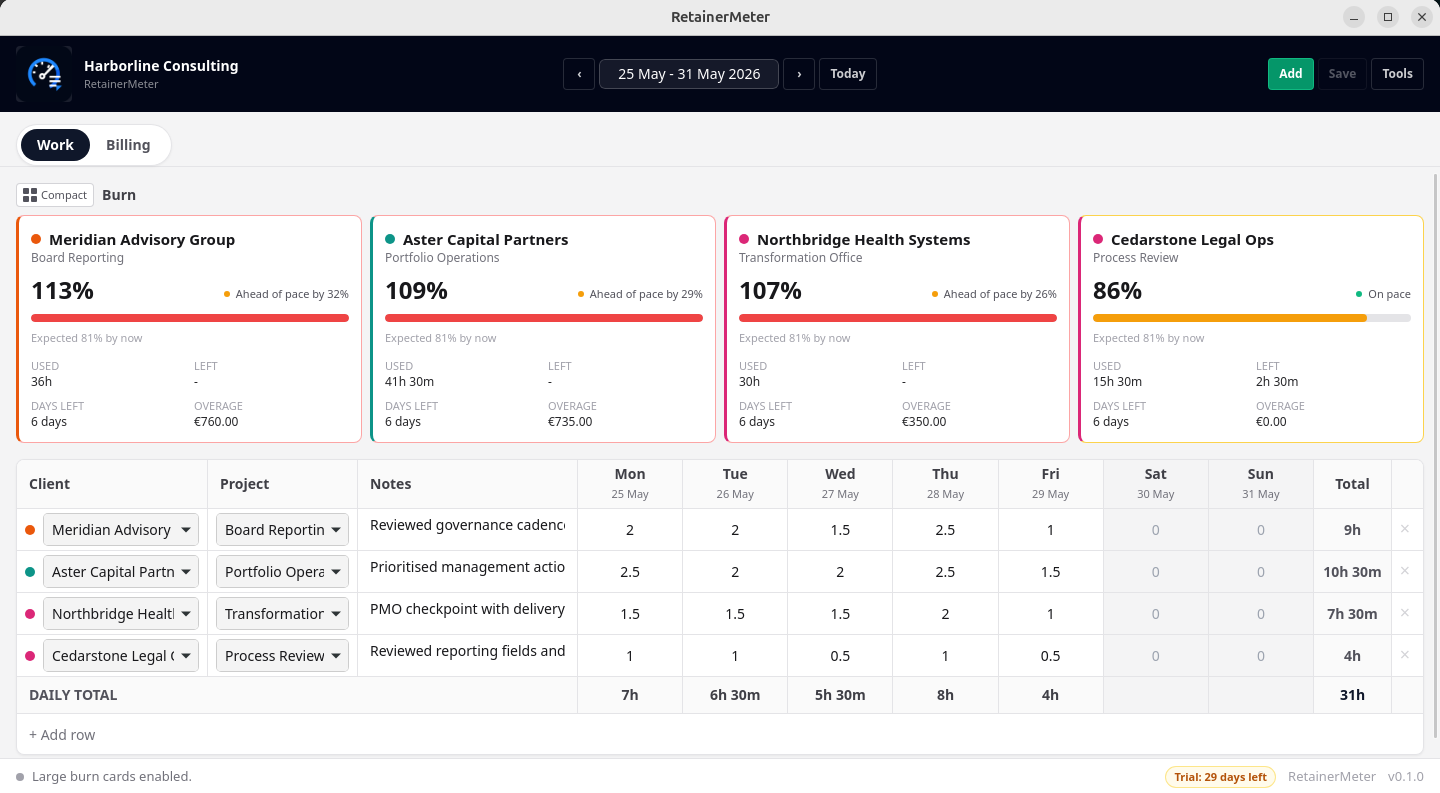
What a burn card shows
- Used is total tracked time for the client in the billing month.
- Left is included hours minus used hours, floored at zero.
- Days left helps you judge whether the burn rate is manageable.
- Extras shows the value of hours above the included allowance using the client hourly/additional-hours rate.
- Expected pace compares the current burn percentage with where the month is expected to be by now.
Status colors and warnings
A client can be healthy, at risk, or over the allowance. The Warning at % used setting controls when the app starts treating a client as at risk. If tracked hours exceed included hours, the card moves into over status.
Why burn can matter even for flat retainers
Flat monthly retainers do not charge additional hours automatically. Burn cards are still useful because they show when a client is consuming more work than expected. That gives you evidence for scope conversations, renewal pricing, or future retainer changes.
Invoices
Billing and invoices
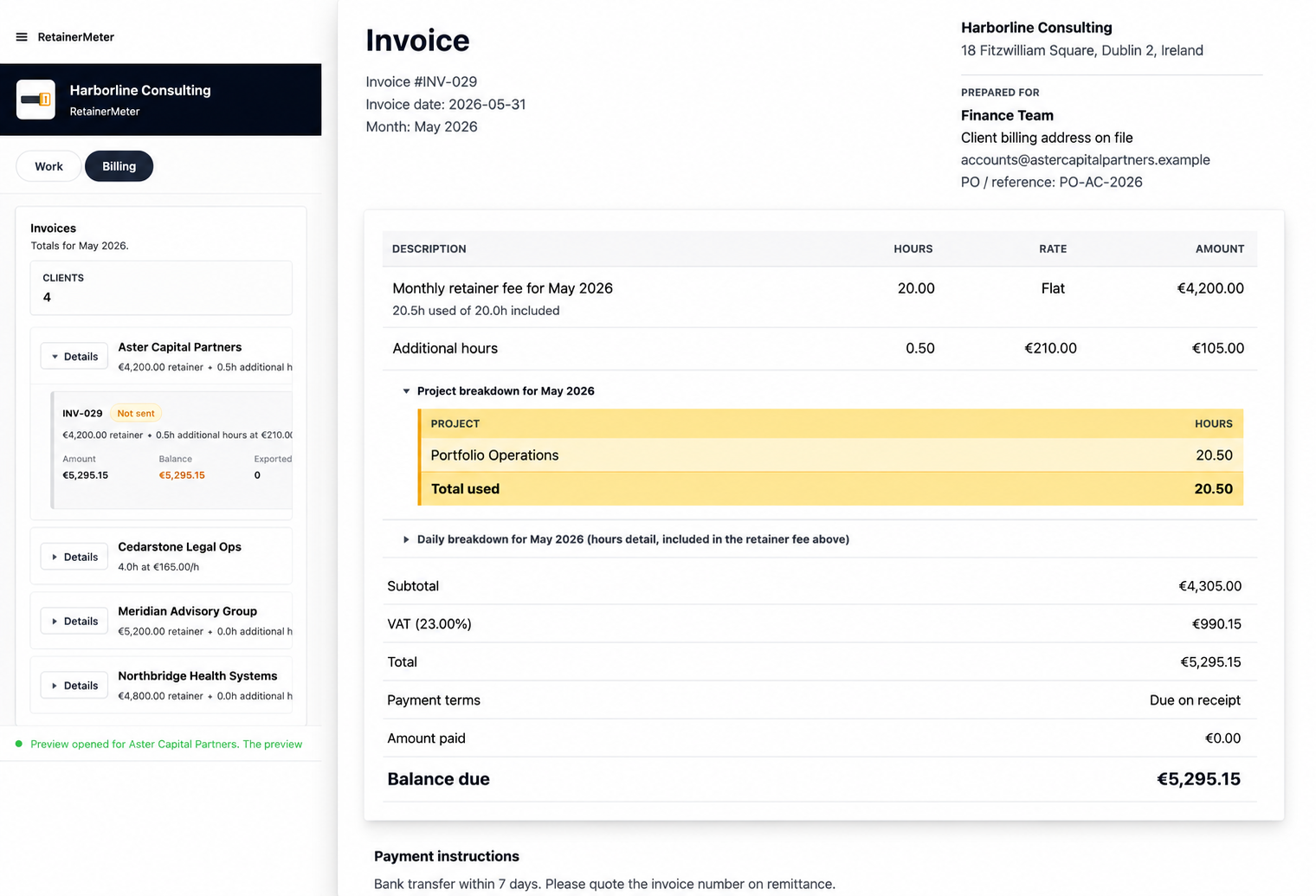
The Billing tab is where RetainerMeter turns tracked work into invoice records. It has its own month cursor, separate from the Work tab's week cursor, so reviewing old billing periods does not silently move your weekly work entry.
Billing summary
When invoices exist for the selected month, the top of Billing shows client count, billed total, paid total, and outstanding balance. Voided invoices are excluded from active totals.
Invoice groups
Invoices are grouped by client and month. A group can include the main monthly invoice and one or more supplemental additional-hours invoices. Use Details to expand the group and inspect individual invoices.
Preview, PDF, and HTML
- Preview opens a dedicated preview window without exporting, locking, or increasing the export count.
- PDF creates a client-ready invoice and locks the invoice snapshot.
- HTML creates a browser-readable archive copy and also locks the invoice snapshot.
Invoice date and sent date
New invoices default to the last day of the invoice month. You can adjust the invoice date before the invoice is locked. Once the invoice is locked, the stored date stays with that invoice when it is re-exported.
The sent date is used when marking an invoice as sent. The app expects the invoice to be exported before you mark it sent, paid, or void.
Payment tracking
After an invoice is exported, you can record payment. A fully paid invoice shows no remaining balance. A partial payment keeps a balance due. Use Mark paid for the simple case where the full amount has arrived, or the payment field when you need to record a specific amount.
Invoice locking
Exporting an invoice locks the snapshot. This is intentional. A sent invoice should not silently change because you later edit hours, notes, rates, tax settings, or client details.
Unlocking is available for deliberate corrections, but it should be treated carefully. Unlocking allows the invoice to recalculate and can affect supplemental invoices tied to it.
Voiding
Voiding keeps a record that the invoice existed but removes it from active totals. Clear payment before voiding. Use voiding for invoices that were issued in error and should remain visible in history rather than being silently deleted.
Corrections
Supplemental additional-hours invoices
If a monthly invoice has already been locked and later work is added for that same client and month, RetainerMeter avoids rewriting the original invoice. Instead, it can create a separate supplemental invoice for the late additional billable work.
Why supplemental invoices exist
Once an invoice has been sent or paid, changing the original total silently is risky. A supplemental invoice gives you a cleaner audit trail: the first invoice remains what it was, and late billable work is handled separately.
How supplemental rows are shown
- The Billing group shows a supplemental count for the client/month.
- The supplemental invoice is tied to the source monthly invoice.
- Supplemental invoice output can include date, project, notes, and hours detail from the saved work snapshot.
- Supplemental invoices have their own number, export count, status, balance, and payment state.
Flat retainers and late work
For a flat monthly retainer, late hours do not automatically create additional charges because the model charges the monthly retainer fee regardless of usage. Late work can still affect burn visibility and future commercial decisions.
Retainer plus additional hours
For retainer-plus-additional clients, late hours above the included allowance can become supplemental billable hours after the original invoice is locked.
Licence
Trial, registration, and maintenance
RetainerMeter starts with a 30-day trial. Registration unlocks the purchased major version. Maintenance controls access to same-major maintenance updates and reasonable support for the licensed version.
Trial
- During an active trial, invoice preview and clean invoice export are available so you can test real workflows.
- After the trial expires, preview remains available, but invoice export is locked until registration is active.
- The trial screen can ask why you are not continuing; providing feedback is optional.
Registration
Use Settings > Registration to open the online store or enter a support key if support has provided one. After registration, the app shows that registration is active on the device.
Maintenance
Maintenance is separate from the base licence. A registered user can keep using their purchased version even without active maintenance. Active maintenance controls access to same-major maintenance downloads and updates.
For example, if you bought version 1, you keep using your purchased version. A later same-major maintenance release may require active maintenance to download through the in-app update flow. A future major version may be a separate optional paid upgrade.
Updates
Use Settings > App to check for updates. Same-major releases are maintenance updates. Higher-major releases may be optional paid upgrades. If you skip a paid upgrade, your current purchased version keeps working.
Local data
Data safety, backup, and restore
RetainerMeter is local-first. That gives you control, but it also means you are responsible for the device and backups.
What backup exports
The backup action exports local usage data, clients, invoices, and payment records. Licence activation is stored separately and is not included in the backup file.
When to export a backup
- Before major billing cleanup.
- Before restoring another backup.
- Before changing devices.
- Before making a large number of client or invoice corrections.
- After month-end billing is complete.
Restore behavior
Restoring a backup replaces the current local usage data, clients, invoice records, and payment records on this computer. Treat restore as a deliberate rollback of the local dataset, not as a merge.
Practical rule: export a fresh backup before restoring anything. If the restore is not what you expected, you need a known-good file to return to.
CSV export
CSV export is useful when you want a portable spreadsheet-style copy of the tracked work. It is not the same as a full RetainerMeter backup. Use backup/restore for app data protection, and CSV when you need external reporting or review.
Support
Troubleshooting
An invoice does not export
Check trial and registration state first. Clean invoice export is available during the active trial or after registration. Expired trial and unregistered states can preview but cannot export clean invoices.
The invoice total is not what I expected
- Confirm the client billing model.
- Check hourly/additional-hours rate.
- Check monthly retainer fee.
- Check included retainer hours and rollover hours.
- Check tax label and tax rate in Settings.
- Check whether the invoice is locked from a previous export.
The burn card looks different from the invoice
Burn cards are live month-status indicators. Invoices may be locked snapshots. If an invoice was already exported, later edits do not automatically rewrite that locked invoice.
I added late hours after billing
If the original invoice was locked, late billable work can appear as a supplemental additional-hours invoice rather than changing the original invoice. Expand the Billing group with Details and check whether supplemental rows exist.
I cannot mark an invoice sent, paid, or void
Export the invoice first. RetainerMeter expects sent, payment, and void actions to apply to an issued invoice record.
My update says maintenance is required
Maintenance is what controls same-major maintenance downloads. Your purchased version keeps working, but access to maintenance updates can require an active maintenance entitlement.
Contacting support
Use Help > Report a problem or Settings > App > Contact support. The app can include app version and operating system details if you choose to include diagnostics. Client names, invoices, hours, file paths, screenshots, and logs are not sent by that diagnostics checkbox.
Reference
Glossary
| Term | Meaning |
|---|---|
| Additional hours | Hours above the included allowance. They become billable only when the billing model charges additional hours. |
| Burn | How much of the month's included retainer allowance has been used. |
| Flat monthly retainer | A fixed monthly fee. Usage is tracked, but the invoice charges the flat retainer amount. |
| Hourly | A model where the invoice is calculated from used hours multiplied by hourly rate. |
| Included retainer hours | The normal monthly allowance in the client agreement. |
| Invoice locking | The snapshot behavior after export. Locked invoices do not silently recalculate when later edits are made. |
| Maintenance | Optional update/support coverage for a registered copy. It controls access to maintenance downloads and updates. |
| Retainer plus additional hours | A model where the invoice charges the monthly retainer fee plus billable hours above the included allowance. |
| Rollover hours | A manual included-hours adjustment for a client. It is not automatic month-to-month carry-forward. |
| Supplemental invoice | A separate invoice row for late additional billable hours after the source monthly invoice was locked. |
| Warning at % used | The client threshold where the burn card begins treating the retainer as at risk. |